September 17, 2026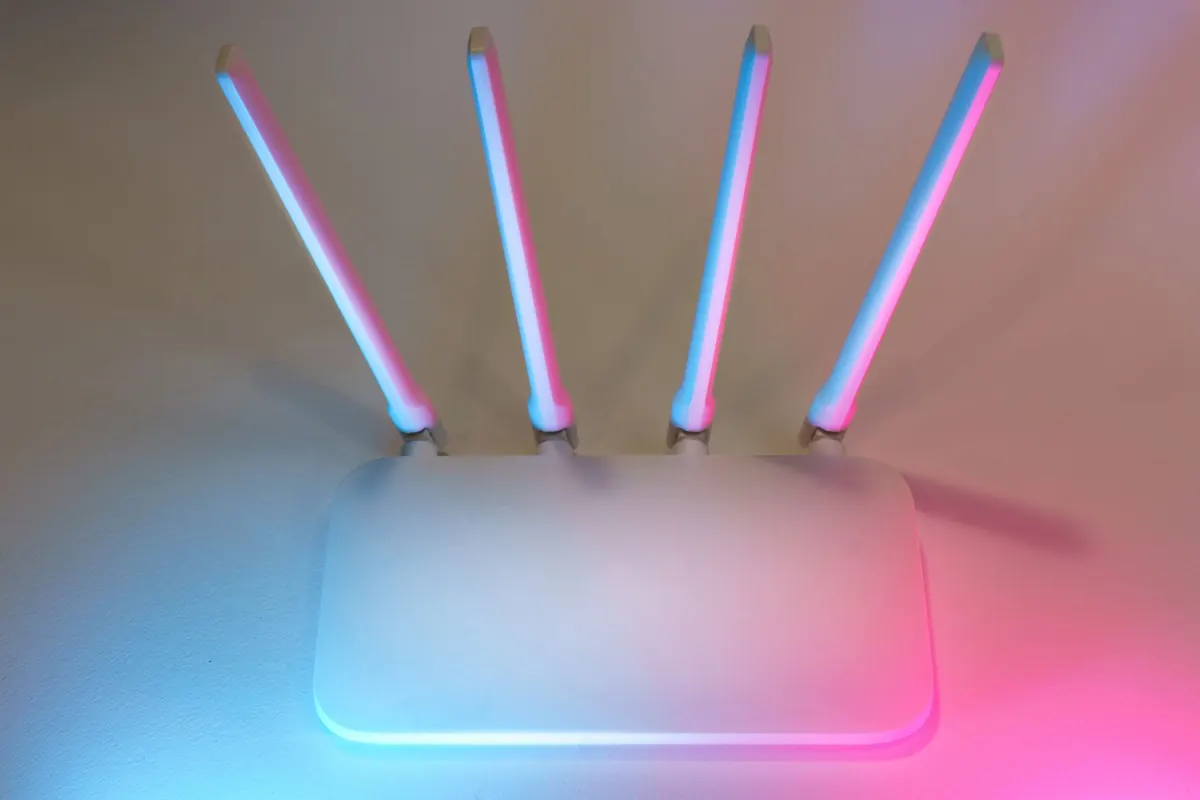
Your work laptop gets the antivirus, the endpoint agent, the forced reboots on Friday afternoons. The router sitting in the hallway gets whatever the internet provider left behind three years ago. That imbalance matters more now that the office perimeter runs through your living room: your router is the border between your employer's data and everything else on the internet, and it is the piece of network gear almost nobody configures.
The good news is that the settings worth checking take about forty minutes, and most of them you touch once. Here they are, roughly in the order that pays off fastest.
1. Change the defaults before anything else
Most routers ship with an admin username and password that are either printed on a sticker or identical across every unit of that model. Both facts are public. If a technician installed your router, the credentials may be even weaker, because installers optimize for quick callbacks rather than for your threat model.
Find the admin page — usually 192.168.1.1, 192.168.0.1, or 10.0.0.1, and often on the same sticker — then do this:
- Change the admin password to a long passphrase. Four or five unrelated words beat a clever eight-character scramble.
- Change the Wi-Fi name so it no longer broadcasts the router model or your surname.
- Change the Wi-Fi password too, especially if the current one was chosen by someone else.
- Save both in a password manager rather than a note on the fridge.
While you are in there, check whether the admin page is reachable from outside. Turn off Wi-Fi on your phone, and try to load the router's address over cellular data. If a login screen appears, remote administration is enabled — switch it off.
2. Patch the firmware, then let it patch itself
Router firmware is a small operating system, and like any operating system it collects flaws that get fixed later. Vendors rarely shout about updates, so nobody installs them. Open the administration page and look for a firmware or update section. If there is an automatic update option, enable it. If there isn't, set a recurring calendar reminder every three months and check the manufacturer's support page manually.
When it's time to replace the router
If the newest firmware for your model is years old, or the vendor's support page has vanished, that router is effectively abandoned. Abandoned routers keep working fine right up until they don't. Replacing a five-year-old unit costs less than most people assume and removes a whole category of problem.
3. Choose real encryption and add a guest network
In the wireless security settings, pick WPA3 if every device in the house supports it. If something older refuses to connect, WPA2-AES (sometimes labelled WPA2-Personal) is the next best choice. Avoid TKIP, WEP, and anything described as open or unsecured.
Then turn on the guest network, even if you never expect guests. Guest networks are typically isolated from the main network, which makes them the right home for the smart TV, the video doorbell, the printer, the robot vacuum, and the tablet your kid uses for streaming. None of those devices need a path to your work laptop. If there's a checkbox for allowing guest clients to reach the local network, leave it unchecked.
4. Switch off the features you never asked for
Routers accumulate conveniences that quietly widen the attack surface. Walk through the settings and disable each of these unless you know exactly why it's on:
- WPS, the push-button or PIN pairing feature. It exists to save typing and it weakens the handshake.
- UPnP, which lets devices open their own inbound ports without asking you.
- Remote management from the internet, including any cloud app that reaches into the router.
- Port forwarding rules you didn't create, or that point at devices you no longer own.
- USB and media sharing if nothing is plugged in.
- Telnet or unencrypted admin access, if your router offers the choice.
One honest caveat: hiding your Wi-Fi name and filtering by MAC address feel like security but barely slow anyone down. Don't count them as protection.
5. Watch the device list once a month
Every router shows connected clients somewhere, often under "attached devices" or "DHCP clients." Skim it. You should be able to account for each entry. An unfamiliar name is not automatically an intruder — a neighbour's phone won't connect without the password — but it is worth thirty seconds of attention. Rename the devices you recognize so next month's check is faster.
If you find something you can't explain, change the Wi-Fi password and reconnect your own devices. That logs out everything else immediately.
6. Don't ask the router to carry the whole load
A hardened router still can't protect a laptop that hasn't restarted in six weeks. Keep the basics on the devices themselves:
- Install operating system, browser, and VPN client updates promptly, and reboot when asked.
- Turn on full-disk encryption, which protects work files if the laptop is lost or stolen.
- Keep work and personal browsing in separate profiles, or separate machines if you have the option.
- When you work from a café, hotel, or airport, use your employer's VPN. Treat any network you don't administer as untrusted, even if it asks for a password.
7. Habits that survive a bad day
Configuration drifts. A friend visits, someone resets the router to fix slow Wi-Fi, an installer adds a new box and leaves defaults in place. Build a few small habits around that reality. Reboot the router every month or two; it clears odd states and forces you past the login screen. Keep the router physically out of shared spaces, because anyone holding a paperclip can press the reset button and start over. And if your employer offers a written home-network policy, skim it once — some organisations require particular settings, and it's easier to comply than to argue afterwards.
None of this is exotic. It is the digital equivalent of locking the front door and knowing who has a key.
The 30-minute first pass
If you only do one thing today, log into the router and change the admin password. Tomorrow, enable automatic firmware updates. Then work down the list at your own pace: encryption and guest network, unused features off, device list checked, laptop hygiene sorted.
Write down what you changed and where you stored the credentials. In six months, when a device stops connecting or a new router arrives in a box, that note will save you an evening — and your network will have been quietly boring for half a year, which is exactly what you want.
Photo: Jakub Zerdzicki / Pexels